From photo to nutritional information: creating an app based on Artificial Intelligence
In this tutorial you will learn to create a web app that analyzes food photos using IA with the LLaVA 1.5 model by Cloudflare Workers AI. You will set up a static front in GitHub Pages, a Worker without server like backend and...
This archive includes automatic translations. Audio, video and text inside images remain in their original language.
Logging meals can be tedious: searching for foods, comparing brands and adjusting quantities. FoodCheck began as an experiment in taking a different approach: start with a photo and produce an editable nutritional estimate. The app does not require an account, but image analysis does use external services.
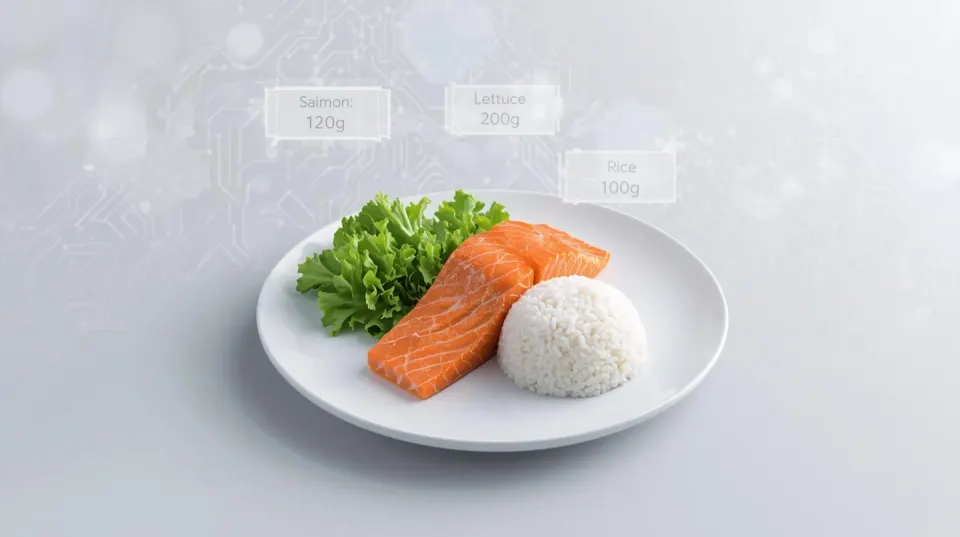
This is how it is born FoodCheck, a static web app deployed on GitHub Pages that detects foods in photos, estimates portions, and calculates nutrients using OpenFoodFacts. The vision “magic” does not go into the browser or a traditional backend, but rather we delegate it to a Cloudflare Worker that uses Workers AI (LLaVA model).
The idea behind FoodCheck
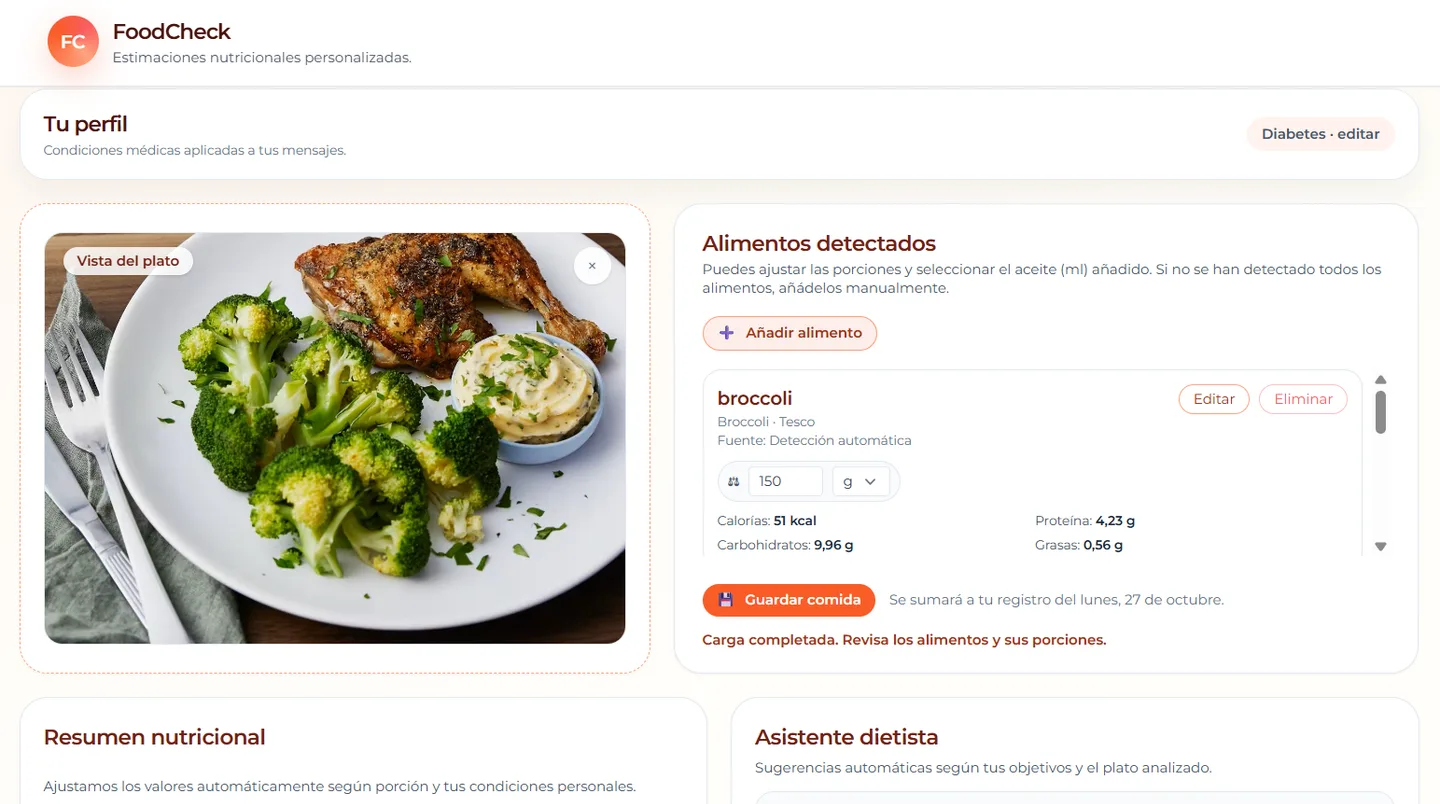
The user opens the app, selects if they have a disease and drags a photo of the food they want to analyze. The application then detects the foods, estimates quantities and displays nutritional information. You can then adjust grams, add new foods, and save the day's food.
Meal records are stored in the browser. To analyse a photo, the app sends it to a Cloudflare Worker and Workers AI; nutrition queries also pass through the Worker to reach OpenFoodFacts. Local storage therefore does not mean that all processing happens locally.
Tools
- Visual Studio Code
- HTML, Tailwind CSS and Javascript
- Google Fonts (Montserrat)
- OpenFoodFacts (Public API, no API key)
- Cloudflare Workers AI (modelo @cf/llava-hf/llava-1.5-7b-hf)
- Despliegue: GitHub Pages (frontend) + Cloudflare Workers (proxy e IA)
A minimalist frontend
When we want to prototype an idea quickly, less is often more. In the case of FoodCheck, the frontend can be as simple as a single index.html file. You don't need heavy frameworks or complex configurations to start experimenting.
To achieve a simple but functional interface that allows the user to upload an image and obtain visual analysis results, we use:
- Tailwind CSS for quick styling.
- Montserrat, an elegant font that enhances the overall aesthetic.
- A small script that manages the flow of interaction with the backend (in this case, a Cloudflare Worker).
As a guide, this could be the structure of your index.html:
`<!DOCTYPE html> <html lang="es"> <head> <meta charset="UTF-8" /> <meta name="viewport" content="width=device-width, initial-scale=1" /> <title>FoodCheck</title> <meta name="description" /> <link rel="preconnect" href="https://fonts.googleapis.com" /> <link rel="preconnect" href="https://fonts.gstatic.com" crossorigin /> <link href="https://fonts.googleapis.com/css2?family=Montserrat:wght@400;500;600;700&display=swap" rel="stylesheet" /> <script src="https://cdn.tailwindcss.com?plugins=forms,typography,aspect-ratio"></script> <script type="application/json" id="foodcheck-config"> { "visionEndpoint": "https://TU-WORKER-NAME.tu-cuenta.workers.dev/" } </script> <style> body { background: linear-gradient(160deg, #fff6f0 0%, #fffdf8 35%, #ffffff 100%); color: #1f2937; font-family: "Montserrat", system-ui, -apple-system, BlinkMacSystemFont, "Segoe UI", sans-serif; } <!-- Resto de código --> </style> </head> <body class="bg-gray-50 flex flex-col items-center p-6"> <h1 class="text-2xl font-semibold mb-4">FoodCheck</h1> <!-- Resto de código --> </body> </html>`
What's behind the photo (the real pipeline)
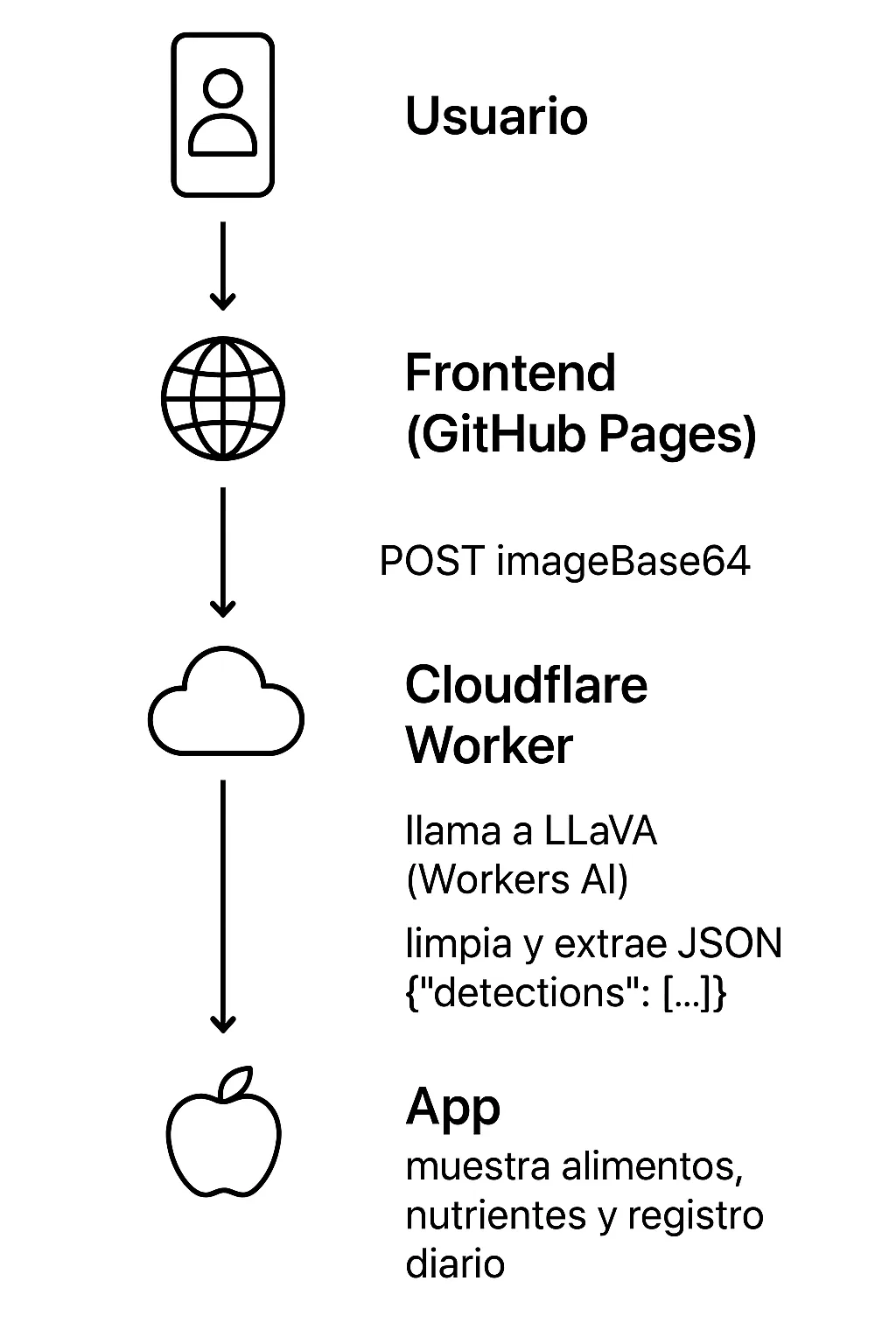
When the user drags a photo to the FoodCheck frontend, the actual process is shown in the following diagram:
1. Food detection
The frontend obtains the URL of the Worker from the JSON configuration block that we already included in the index.html and that acts as a bridge between the browser and the backend in Cloudflare Workers.
When the user adds an image, we convert it to Data URL with FileReader.readAsDataURL (format data:image/…;base64,…):
`function processFile(file) { // Leemos como Data URL para poder mostrar y enviar como texto const reader = new FileReader(); reader.onload = (e) => { const src = e.target?.result; // "data:image/...;base64,AAAA..." if (!src) return; // Guardamos en estado y mostramos la previsualización state.image = { src, name: file.name, lastModified: file.lastModified }; loadImagePreview(src); // muestra la imagen en la UI }; reader.readAsDataURL(file); }`
We send that string as JSON to the Worker via POST, along with a prompt, and the Worker responds with a JSON that includes the detections. These detections will be a structured JSON, since the Worker previously prepares a prompt in Spanish that tells the model how to respond, for example:
`{ "detections": [ { "name": "manzana roja", "confidence": 0.92, "portion_estimate_grams": 120 } ] }`
The prompt requests a structured response but cannot guarantee one. The frontend must validate the JSON and handle incomplete or incorrect responses before using it.
In turn, the call to the model is direct:
`const result = await env.AI.run('@cf/llava-hf/llava-1.5-7b-hf', { image: Array.from(imageBytes), prompt: systemInstructions, max_tokens: 1024 });`
And LLaVA returns text in result.description, from which the JSON block must be extracted by applying, for example:
`const cleaned = jsonString.replace(/\\_/g, '_'); const json = JSON.parse(cleaned); … return json?.detections ? json : { detections: [] };`
The frontend then receives the clean response with {detections»:[…]}.
2. Portion estimation
Before using the results, names are validated and confidence is normalized (0–1). If the vision model does not return a slice quantity, a default value is assigned:
`const portionAmount = detection.portionGrams ?? 120;`
Additionally, the user can edit the quantity and unit (grams, ml, piece, cup) with predefined conversions in the code (e.g. 1 piece ≈ 80 g, 1 cup ≈ 150 g):
`const UNIT_CONVERSIONS = { g: 1, ml: 1, pieza: 80, taza: 150 }; function convertToGrams(amount, unit) { const factor = UNIT_CONVERSIONS[(unit || "g").toLowerCase()] ?? 1; return (Number(amount) || 0) * factor; }`
3. From names to nutrients
Each detected food is consulted in OpenFoodFacts to find out its nutritional composition. We search by name and we are only left with products that have complete information about their nutrients. To avoid CORS problems and have a single point of control, the app does not call OpenFoodFacts directly, but rather our Worker (Cloudflare).
To call the Worker and make the queries, we first build a URL with parameters of interest (text that the user writes, number of results...). We call this URL through the endpoint configured in (id foodcheck-config), reusing the same domain of the Vision Worker:
``async function queryOpenFoodFacts(query, limit = 50, options = {}) { if (!query || !query.trim()) return []; const params = new URLSearchParams({ search_terms: query, search_simple: "1", json: "1", page_size: String(limit), lc: "es", }); const externalSignal = options.signal; const controller = externalSignal ? null : new AbortController(); const signal = externalSignal ?? controller.signal; const timeout = externalSignal ? null : setTimeout(() => controller.abort(), 7000); try { const cfg = JSON.parse(document.getElementById("foodcheck-config").textContent); const endpointBase = cfg.visionEndpoint.replace(/\/$/, ""); const proxyUrl = `${endpointBase}/api/nutrition?${params.toString()}`; const response = await fetch(proxyUrl, { signal }); if (!response.ok) throw new Error(`El proxy de nutrición falló: ${response.status}`); const data = await response.json(); if (!Array.isArray(data.products)) return []; return data.products.filter((product) => product?.nutriments); } finally { if (!externalSignal && timeout) clearTimeout(timeout); } }``
The Worker thus receives the search parameters and makes the server-to-server request to OpenFoodFacts:
``async function handleNutritionRequest(request, env) { const url = new URL(request.url); const params = url.searchParams; try { const offUrl = `https://world.openfoodfacts.org/cgi/search.pl?${params.toString()}`; // El worker llama a OFF (de servidor a servidor, sin CORS) const response = await fetch(offUrl, { headers: { 'User-Agent': 'FoodCheckApp-Proxy/1.0' } }); const data = await response.json(); // Devolvemos la respuesta de OFF al navegador return new Response(JSON.stringify(data), { status: 200, headers: { ...corsHeaders(), "Content-Type": "application/json" } }); } catch (err) { return new Response(JSON.stringify({ error: "Error al contactar OpenFoodFacts", details: err.message }), { status: 500, headers: { ...corsHeaders(), "Content-Type": "application/json" } }); } }``
The response returned to the browser is a product with nutrients per 100 grams. The app adjusts the nutritional values to the estimated portion previously calculated following this formula:
`nutriente_por_porción = (nutriente_por_100g * gramos_porción) / 100`
3. Viewing and local registration
The values obtained in the previous step are shown to the user in a macronutrient ring (kcal and % energy) and in a nutrient table. In addition, the interface also shows the editable list of detected foods along with their quantity and a “virtual dietician” type message with simple observations based on set thresholds:
`if (totals.fiber < 12) suggestions.push("Añade verduras, legumbres o fruta para aumentar la fibra."); if (totals.sodium > 800) suggestions.push("Controla el sodio: limita sal añadida y productos procesados."); …`
User can save each meal. The daily log automatically adds up meals and displays full nutritional information, and this is achieved through persistent data saving like the one we show here:
`// Guardado persistente function persistState() { localStorage.setItem("foodcheck:preferences", JSON.stringify({ conditions: state.userConditions })); localStorage.setItem("foodcheck:dailyLog", JSON.stringify(state.dailyLog)); } // Guardar una comida function saveCurrentMealToHistory() { const totals = calculateTotalsFromItems(state.foodItems); const entry = { timestamp: Date.now(), items: structuredClone(state.foodItems), totals }; const day = state.currentDate; // "YYYY-MM-DD" const dayEntry = state.dailyLog[day] ?? { items: [], totals: null }; dayEntry.items.push(entry); dayEntry.totals = dayEntry.items.reduce((acc, it) => sumTotals(acc, it.totals), emptyTotals()); state.dailyLog[day] = dayEntry; persistState(); }`
Deploying to GitHub Pages and Cloudflare
The deployment is twofold:
- Frontend: static repository on GitHub Pages.
- Worker: Published on Cloudflare with env.AI binding. The URL generated when deploying is the one we use in the Javascript block of the HTML.
Real problems and how I solved them
At first, I tried to connect FoodCheck with OpenRouter to use free vision models. On paper it sounded good, but in practice it didn't detect food or returned empty responses.
I was trying to solve the main problems that arose:
- The model did not see the image, so I made it receive multimodal messages (text and image).
- CORS errors, so I created a Worker as proxy to manage it.
- Malformed JSON, having to implement defensive parsing on the frontend (clean up the text, extract the braces {} and retry JSON.parse()).
- Large or HEIC images, so I formatted them to JPEG and limited their size (ex: .toDataURL('image/jpeg', 0.85)).
Despite these adjustments, the system still did not work. The likely reason is that low-priority free models were queued or timed out without a response if the network was saturated, especially without an associated billing account.
So I looked for another alternative that didn't involve payments or sensitive registration, and I found it right in Cloudflare Workers AI. Since I already had the project deployed in Workers, I tried Workers AI's LLaVA model and it worked first time.
And this is where Codex plays an important role. I used it as a wizard to generate functions, debug errors and adjust prompts. He was a great learning partner due to his great precision and speed. But with it I also learned a key lesson, and that is that if you don't define the architecture of the application well, the AI is going to do it for you and it may not get it right.
In my case, I needed a 100% static app for GitHub Pages and, although I gave him the exact conditions, at some point he proposed creating a Node server or using environment variables (.env), which is not possible there.
There I understood that the key is to first decide the architecture and keep the prompts consistent with that decision in order to use AI within that framework. Therefore, it is better to use AI to speed up the work, not to decide for you.
Final reflection
FoodCheck is not intended to replace a dietitian. It shows how code and AI can support educational tools, while reminding us that we need to explain and review how those tools process data.
Therefore, the future of AI applied to health may not lie in large servers, but in the hands of curious developers.
A history of the Saturdays.AI community. Originally published on Nov 26, 2025.
← More community stories