How to make videos using Artificial Intelligence?
Learn to make videos using artificial intelligence. Use Chat GPT for text, Midjourney for images and Canva for montage
This archive includes automatic translations. Audio, video and text inside images remain in their original language.
To make the video I used Chat GPT+ for the text, Midjourney for creating images and Canva pro for video editing.
History of Artificial Intelligence for Teenagers
Creating text with Chat GPT
First of all, we must select the topic on which we want to make the video, the platform it will be used for, and be clear about the audience we want to target. In this case I knew that the topic would be the history of artificial intelligence, the platform that would be destined for it is Youtube short and finally the audience, adolescent public. With this clear, I wrote the following prompt in Chat GPT:
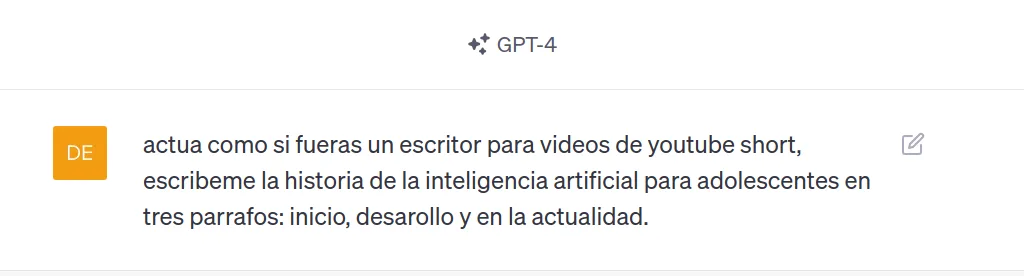
Prompt asking Chat GPT to write a story about artificial intelligence for a Youtube Short video.
With only three lines of prompt, I write the entire story of the video. Like it's magic?!
Creating prompts with ChatGPT to create images with Midjourney
To create the images I have used ChatGPT so that I could write the prompt that I will later use in Midjourney
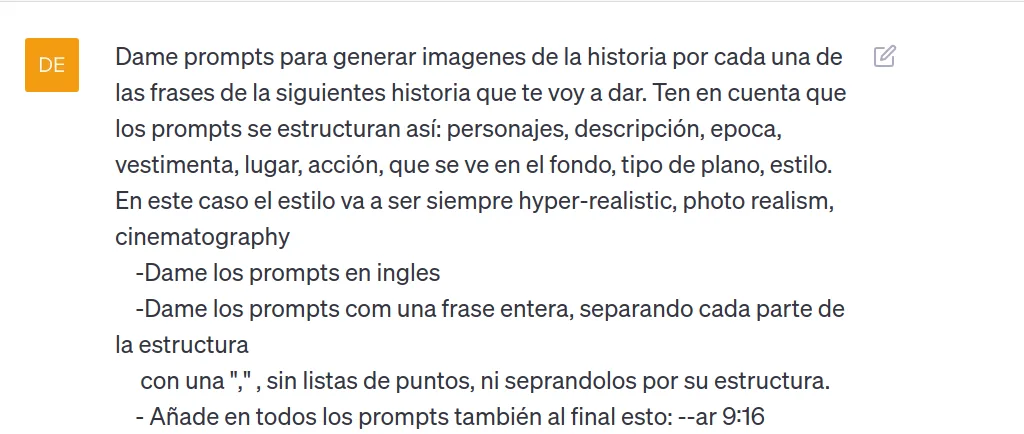
Pormpt so that Chat GPT generates the prompts that we will use in Midjourney
First I have indicated the number of prompts necessary to create the video. Below, I have indicated the structure. In this case, since it is a history video, I have indicated that the style be hyper-realistic, photo realism and cinematography.
The third point is that it generates the prompts in English because Midjourney was largely trained with that language and therefore, it works much better if the prompts are in this language. Next, I indicated that I wanted the prompts in one sentence, separating each part with quotes. In this way midjourney interprets the text better.
Then, I told him to add to the end of the prompts what he wanted the images to look like. In this case, as it is for YouTube Short, the aspect ratio is 9:16, ideal for mobile phones.
Finally, paste the story that Chat Gpt had previously generated for me. In my case, it generates 9 prompts in Spanish. So, I told him to translate them into English for me.
Image generation with Midjourney
To access Midjourney, we will do it through Discord. Once we have accessed the midjourney channel, we write /imagine and then we copy the prompt that Chat GPT has generated for us and paste it into MidJourney.
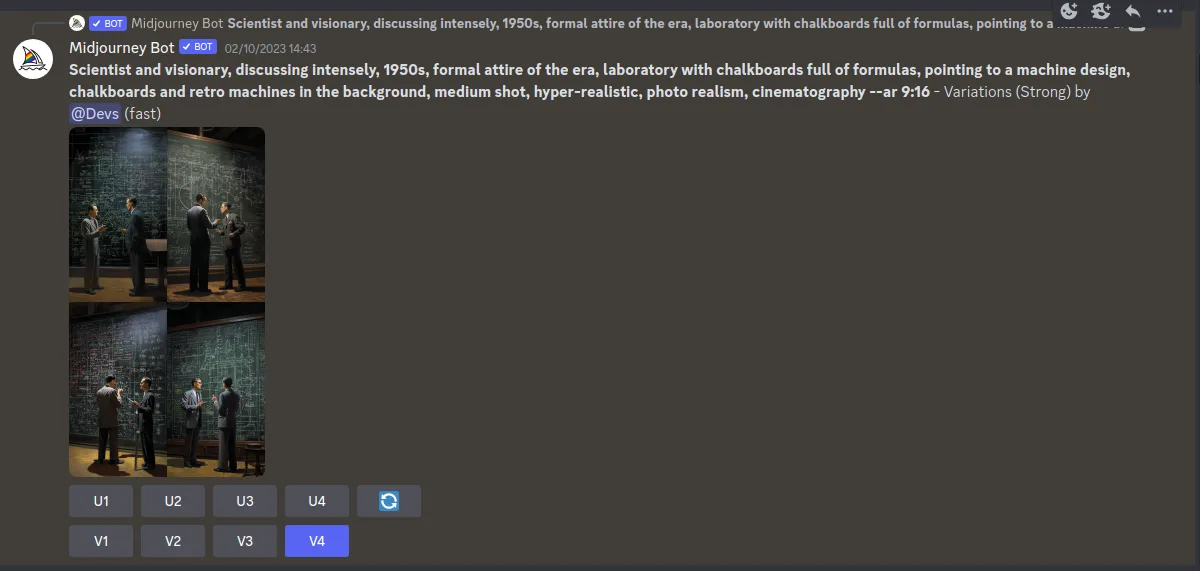
MIdjourney prompt that generates 4 images of two scientists from the 50s
We wait a few seconds and it generates 4 images. If there is one that we like, we select U and the image number. The image on the top right is 1, the one on its side is 2. The images below are 3 and 4, from right to left.
In my case, the one I like the most but it doesn't convince me is number 4. Then I press V4 and it generates 4 new images similar to this one.
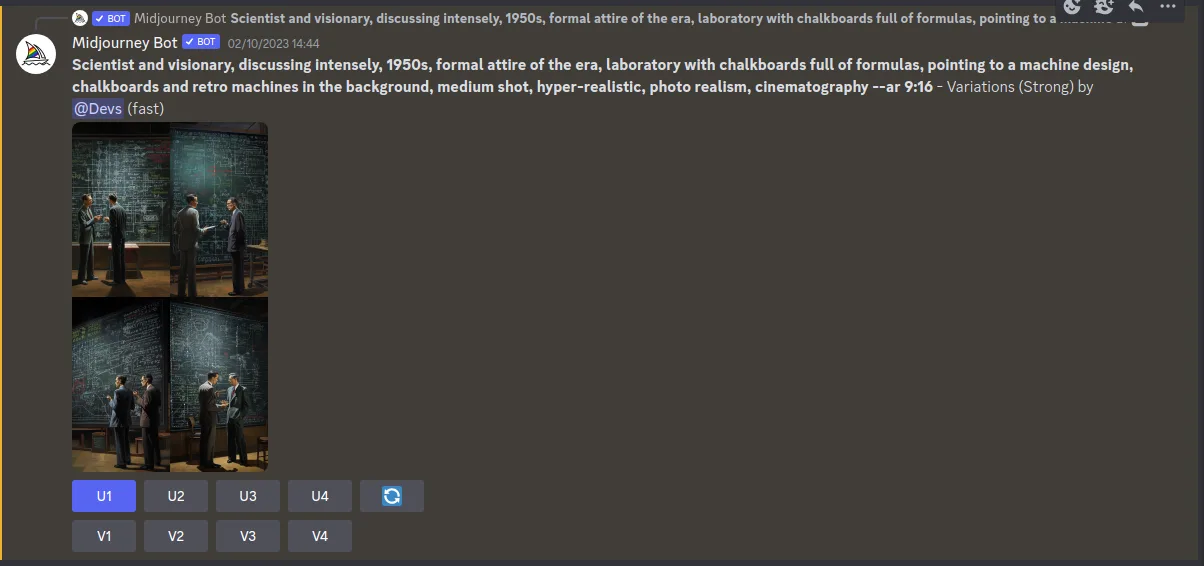
MIdjourney prompt that generates 4 images of two scientists from the 50s
The one I like the most of these is the first one and I press U1. In this way it becomes larger, allowing you to see all its details better. If it is the image we want, we double click with the right mouse button and we leave the image.
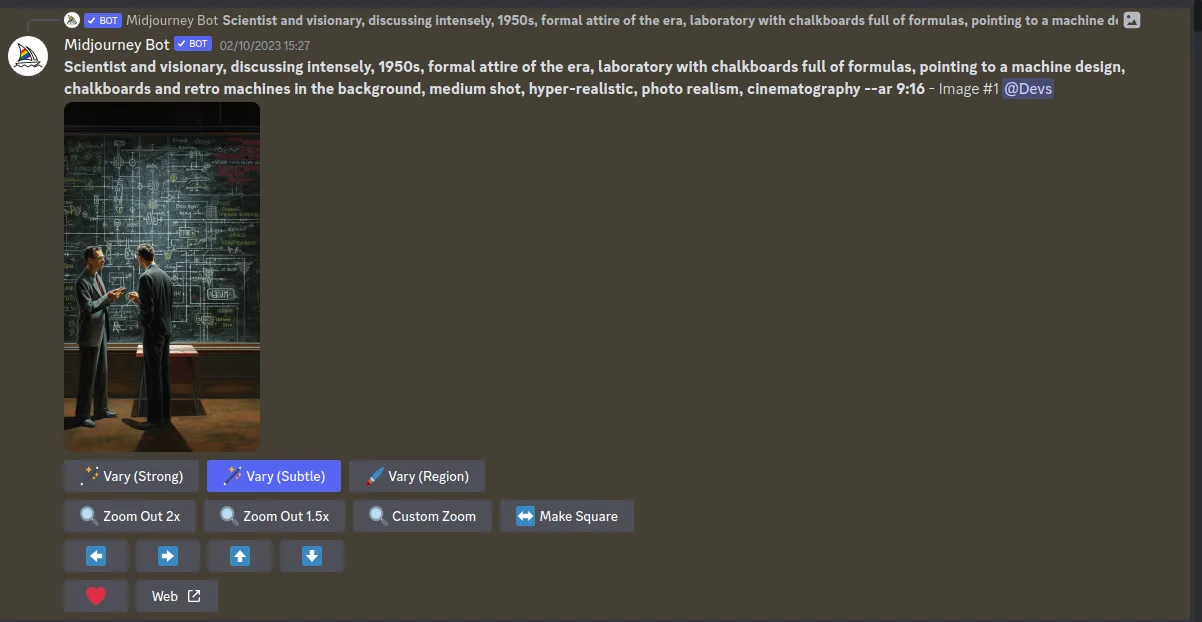
MIdjourney showing an image of two scientists from the 1950s
From here, we can click on any of the three options above in case we want to change something about the image. In addition to being able to enlarge the image, make it square. The arrows help MIdjourney generate what happens around it. For example, what is on the left of the image. It can be one of these 4 options and if none of them convinces us, we choose the last option on the left.
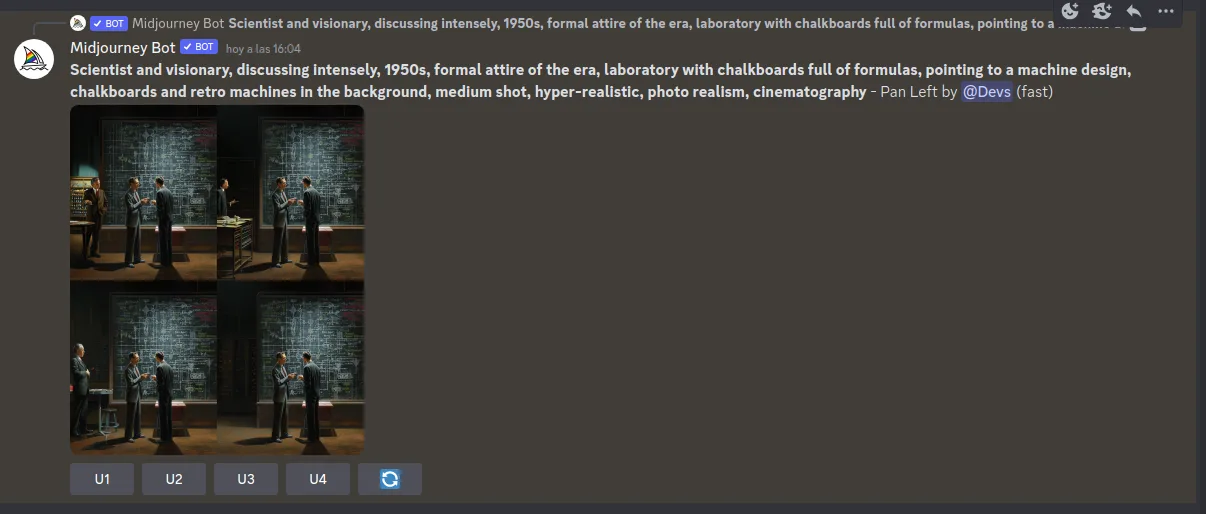
4 images created by Midjourney that have created possible scenarios of the image above.
In my case, I like image U1. And this is how it looks big.
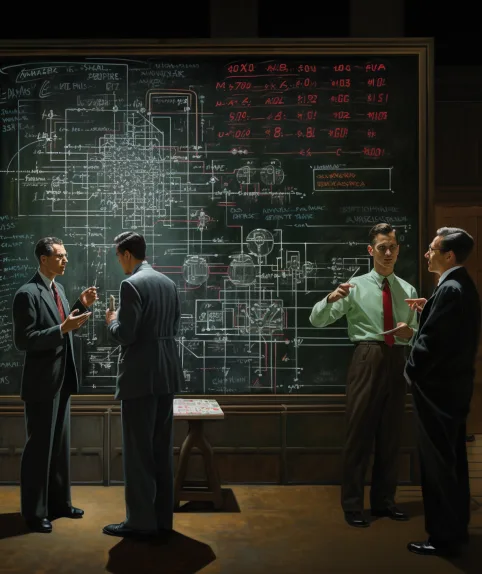
Image created through MIdjourney that shows 4 scientists from the 1950s discussing artificial intelligence.
This is the process that I have followed with all the images that appear in the video.
Video editing with Canva Pro
The first thing I did was select the option to create videos for mobile format. Upload images that had previously been downloaded from Midjourney to canva. Add as many pages as images had been generated.
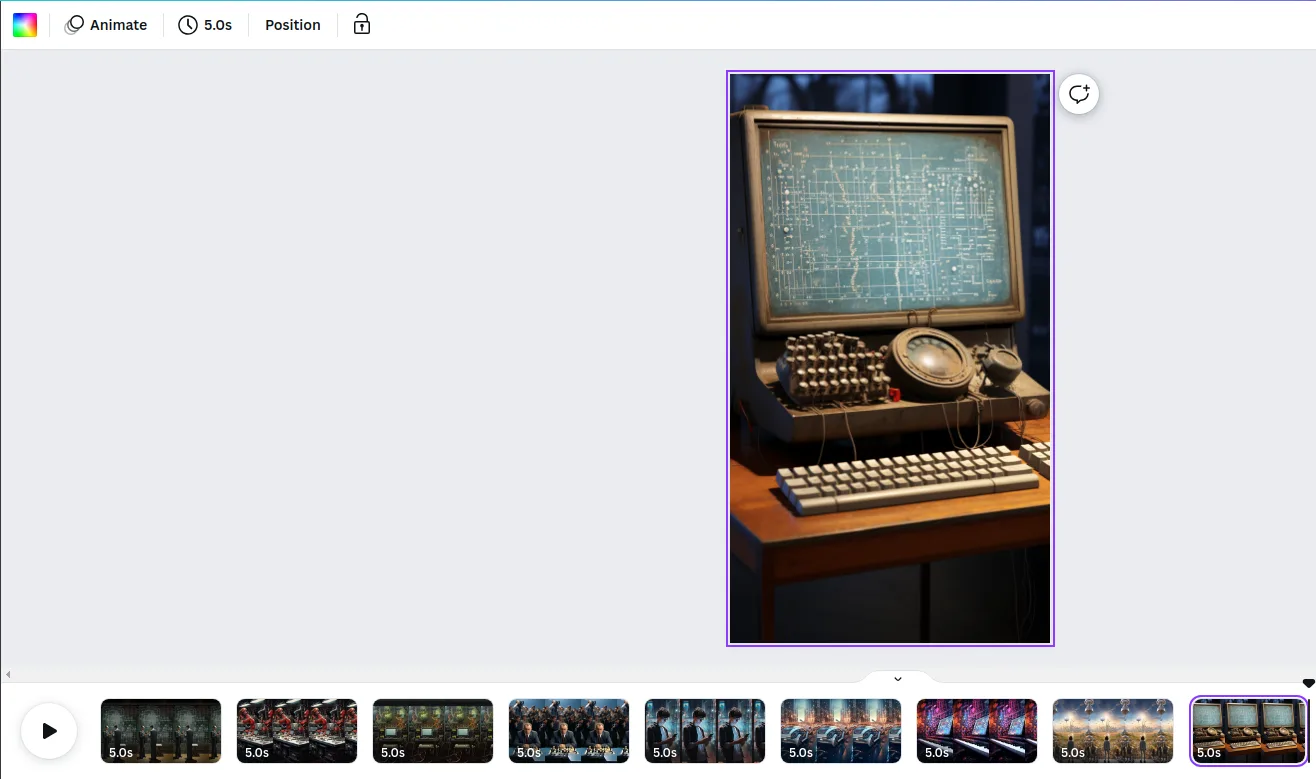
Canva Pro editing for videos in mobile format
Next, I copied the phrases from the story that Chat GPT had created to the corresponding image. Adjusting the phrase to the image and selecting the burst animation that transcribes the phrase into the image, through the intensity we select if we want it to be faster or slower. Giving a sensation of movement.
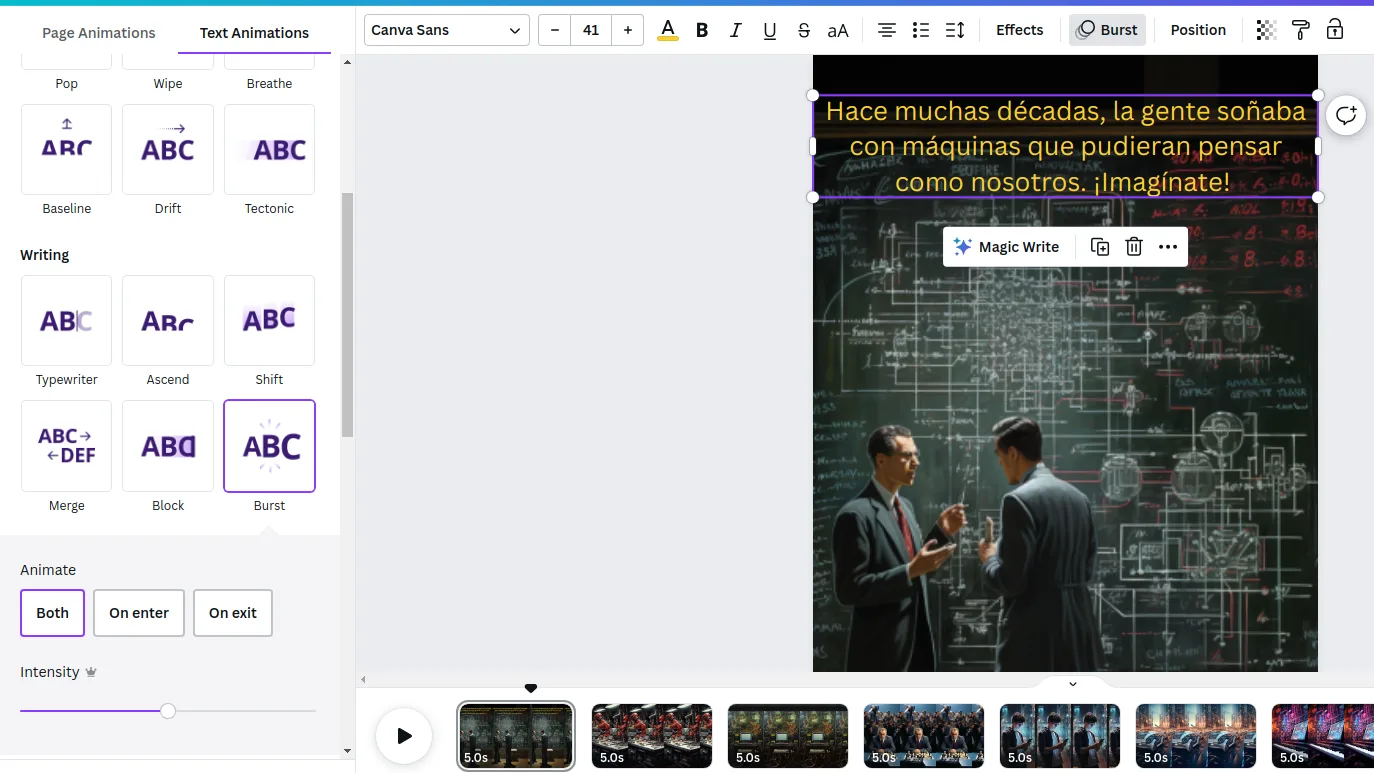
Adding Burst animation to text in images
Once we have repeated this process with all the images, we must adjust their time depending on the text we have placed so that the viewer can read the text correctly.
Next, I have animated the images and added transitions between them in order to transmit movement. Finally, I searched through Canva for a melody to accompany the images. To adjust the melody to the video, I have used the Beat Sync function.
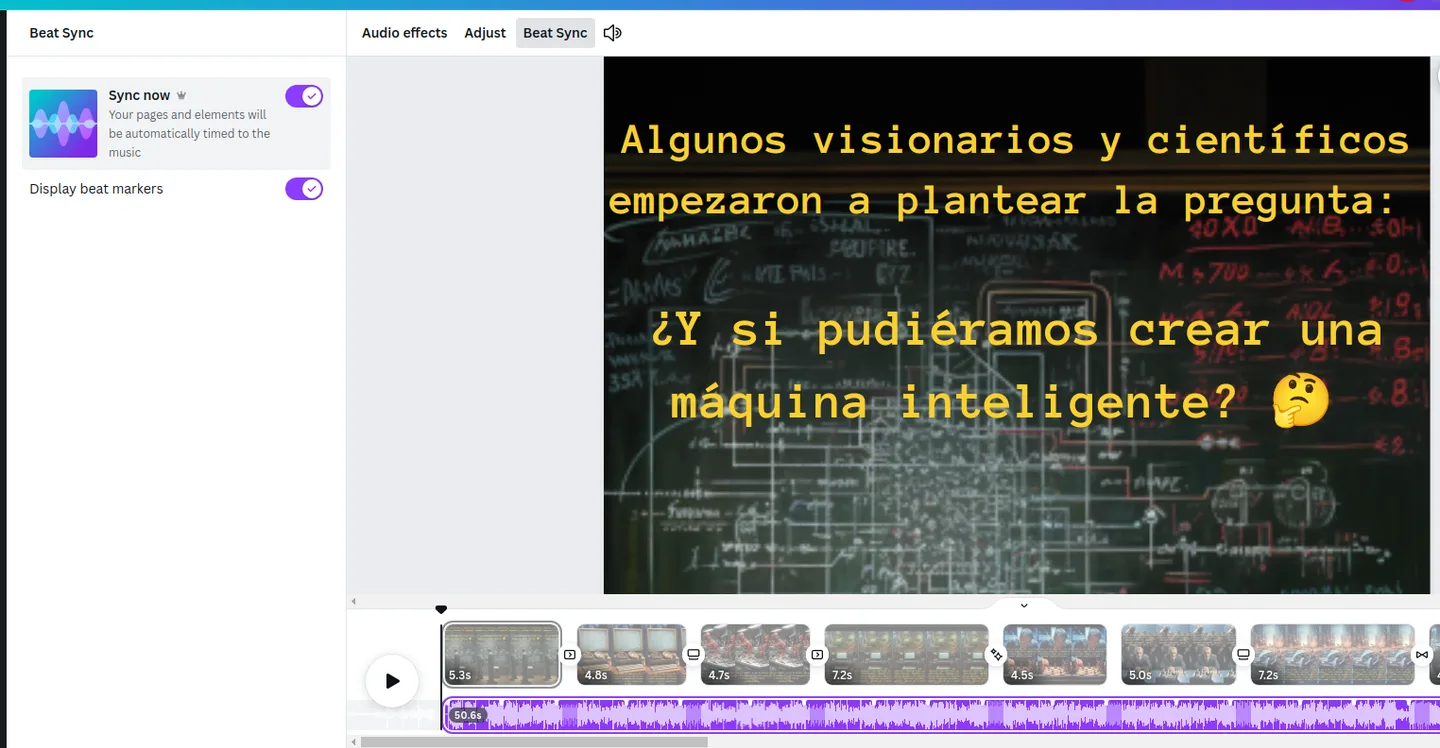
Adjusting music in the CAnva editor with the Beat Sync function
I used Canva to do the video editing because it is the most intuitive editor on the market, but you can use the video editor that best suits you.
Now, we have to enjoy the video that we have generated through Chat GPT, Midjourney and Canva Pro. I leave you a summary of the tutorial in video format that lasts less than a minute.
Video summary of How to make videos using artificial intelligence?
More artificial intelligence
The mission of Saturdays.ai is to make artificial intelligence more accessible #ai4all through intensive courses and programs where projects for the good are carried out #ai4good. We also carry out projects and consulting for organizations that want to get the most out of AI.
If like us you like technology, become a premium member of Saturdays and you will be able to take advantage of all the benefits of a leading community in Artificial Intelligence: https://saturdays.ai/become-a-member
On our website you have free online courses and content to help you, as well as a community of passionate people like you, we are waiting for you!
A history of the Saturdays.AI community. Originally published on Oct 25, 2023.
← More community stories